AI Smart Binding
As an OT engineer or system integrator, you may often face scenarios like these:
-
Tight project timelines with customers pushing for delivery. You just used AI to generate a beautiful monitoring page, only to realize that you now need to spend hours manually searching for tags and binding data points—undermining the promise of "rapid development."
-
Complex equipment – a hydraulic press monitoring page might contain dozens of data points (temperature, pressure, flow...), and your project may have hundreds or even thousands of tags. How do you quickly and accurately find that "temperature sensor 01" among a sea of tags? Manual searching? Excel lookup tables? These methods are inefficient and error‑prone.
-
Repetitive work is exhausting – "Main Cylinder Top Stop" on Machine A and "Main Cylinder Top Stop" on Machine B are essentially the same type of parameter. Why should you repeat the same binding operation over and over? That time could be used to optimize process logic or solve your customers’ core problems.
The essence of the pain point:
AI helps you generate the page, but the page is only a static graphical interface. Turning a static page into a usable system that runs on the real production line and displays live data still requires a significant amount of time and effort for "tag binding."
AI Smart Binding
Now this challenge is solved. AI Smart Binding is an important feature that enables AI not only to "draw" but also to "wire." From now on, your workflow evolves from "generate → manually bind → usable" to "generate → AI intelligent matching → one‑click confirm → usable."
In one sentence:
The AI automatically understands the meaning of every component on your generated page, intelligently searches , precisely matches within the device channels you specify, and recommends the most suitable tags to bind. The whole process is fast and accurate.
Four Core Highlights
1. True "Intelligent Understanding"
The AI does not simply match by name; it truly understands the context:
- When the page title is "Hydraulic Press Main Unit 1 Monitoring", the AI prioritises searching within channels related to "hydraulic press".
- When a component is a numeric display showing "Temperature", the AI automatically filters out all non‑temperature tags.
- After you set the device channel scope, the AI will only search within that reasonable range to find the best match.
2. Wide Component Coverage
AI Smart Binding is no longer limited to static text and real-time tags; it also covers core business components on the page:
- Non-chart components: Supports text content, numeric display, dynamic text, progress bar, numeric input, switch button, jog button, dropdown control, control button, read/write box, dynamic shape, dynamic image, and other display, control, and status components.
- Chart components: Supports line chart, bar chart, pie/donut chart, gauge, area chart, scatter plot, table, etc. The AI can recommend data sources and assist in configuring fields such as dimensions and metrics.
- Adjustable binding suggestions: If a recommendation needs modification, you can manually adjust it during review, or continue the conversation to let the AI re-optimize the binding suggestions.
3. Dramatic Efficiency Improvement
Let the data speak for itself:
| Work Scenario | Traditional Manual Binding | AI Smart Binding | Efficiency Improvement |
|---|---|---|---|
| Simple monitoring page (20 components) | ~2 hours | < 5 minutes | 96% improvement |
| Complex dashboard (50+ components) | ~6 hours | < 10 minutes | 97% improvement |
| Multi‑device aggregate page (100+ components) | 1-2 days | < 20 minutes | 98% improvement |
What does this mean?
- A project that would originally take 3 days can now be delivered in 1 day.
- You can use the time saved to optimise logic, test the system, or serve more customers.
4. Complete Controllability and Transparency
We know that any mistake on an industrial site can have serious consequences. Therefore, the AI's role is "advisor", not "dictator":
- Review mechanism: After the AI completes the matching, all recommendations are shown as a list for you to review item by item.
- Flexible modification: Not satisfied with a recommendation? You can uncheck it or manually modify it in the list.
- Second confirmation: Changes take effect only after you click "Apply Binding".
Throughout the process, the decision power always stays in your hands.
Operation Steps
Step 1: Generate the Page
Describe your requirements in natural language, and the AI generates a monitoring page for you.
Example: "Create a hydraulic press monitoring page with 4 main units. Each unit shows temperature, current, production count, and efficiency."
After the page is generated, move to the next step.
Step 2: Start Smart Binding
Click on the page smart assistant dialog window, then click the "+" button at the bottom, you will see the Smart Binding button.
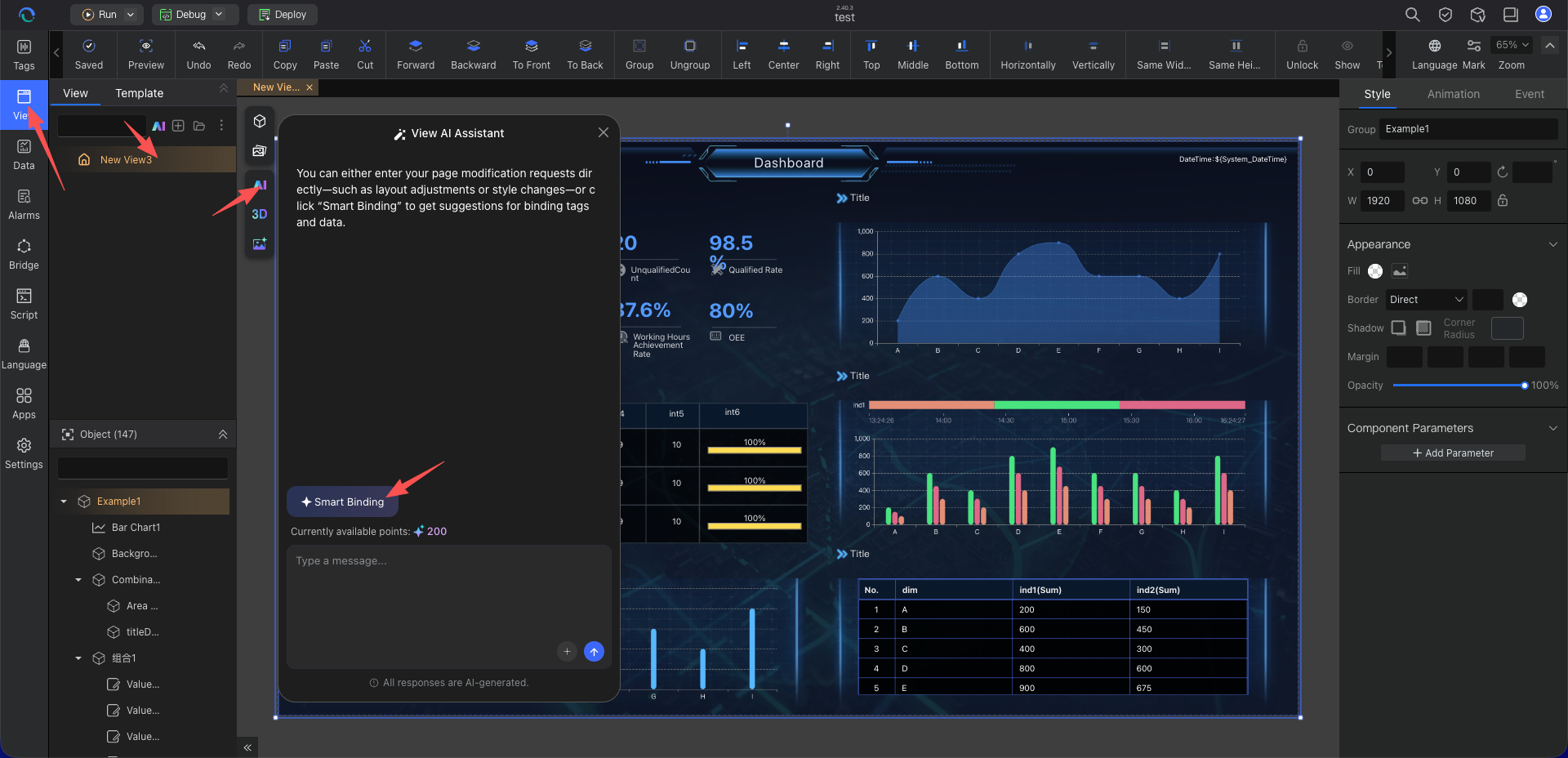
Click it to enter the binding flow.
Step 3: Select the Data Scope and Let the AI Work
A window will pop up with the title: "Select Tag Scope"
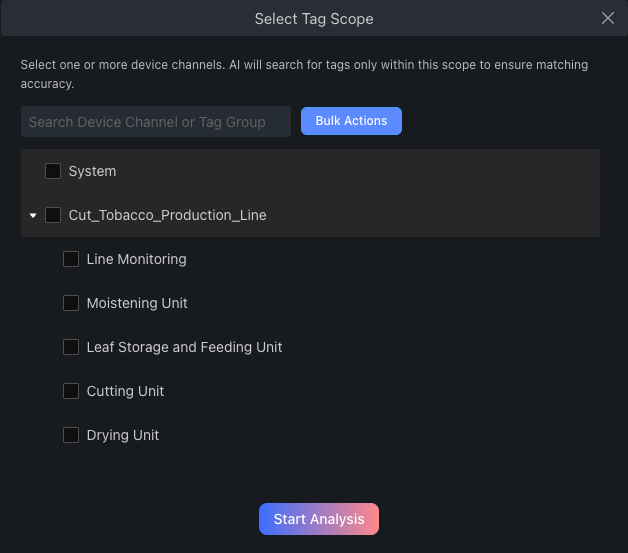
- What do you need to do? In the tree‑structured device channel list, check one or more channels. For example, check "Hydraulic Press – Main Unit 1", "Hydraulic Press – Main Unit 2".
- Why select a scope? This allows the AI to search within the correct range, preventing it from mistakenly matching "boiler temperature" to "hydraulic press temperature". The more precise the scope, the more accurate the matching.
- Hint: If your project tags are well managed and channel names are clear, this step will be very quick.
After selecting, click the 【Start Analysis】 button.
Step 4: Review the AI's Suggestions
The AI will finish the analysis in a few seconds to a dozen seconds, and a new window will pop up with the title: "Smart Binding Suggestions"
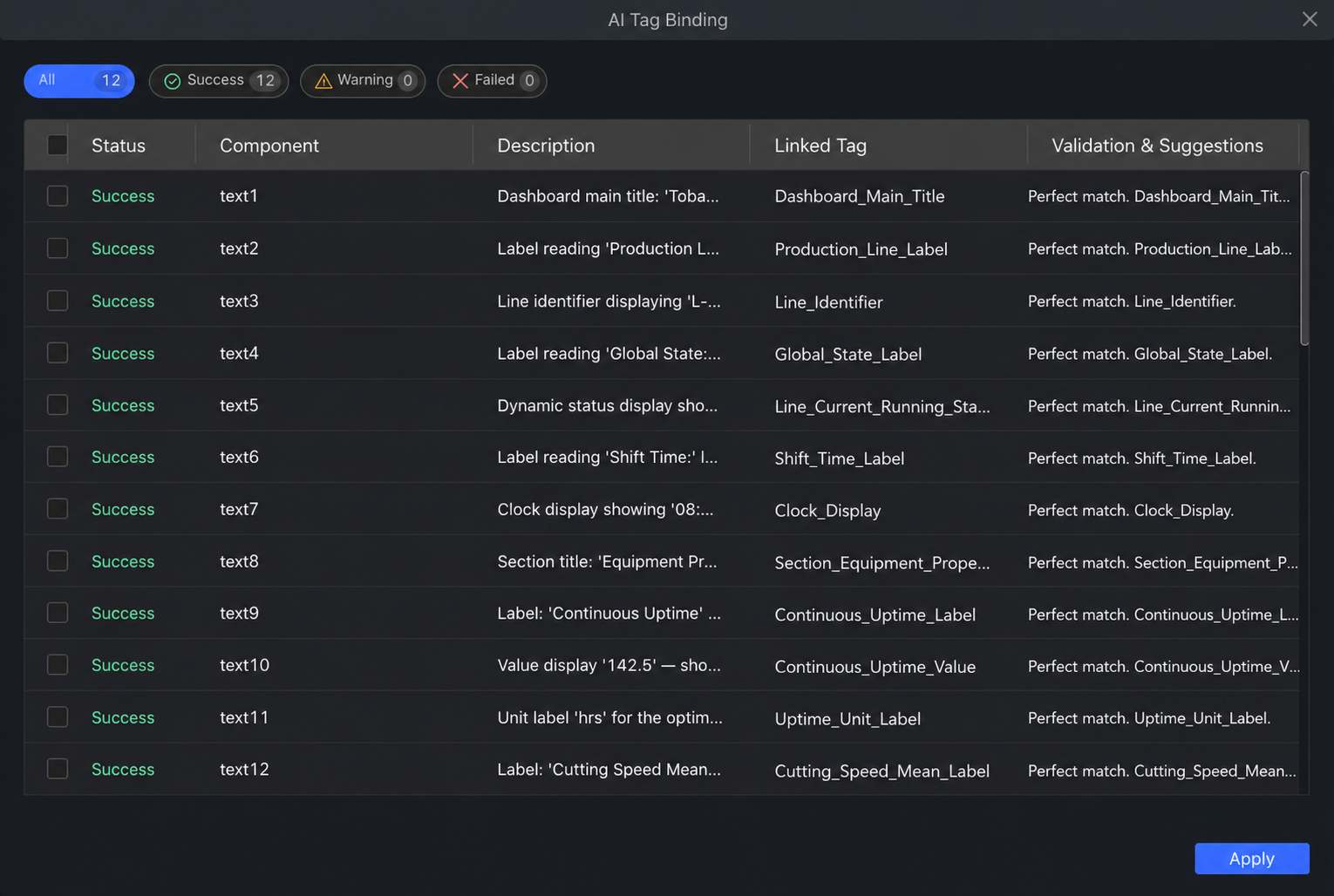
The window shows a list. Each row contains:
- Component Name (e.g., "Temperature – numeric box")
- Tag recommended by AI (e.g., "PLC_1.Temperature_Sensor_01")
- Field configuration suggestions (for chart components, includes recommendations for dimensions, metrics, X‑axis, Y‑axis, etc.)
- Match confidence (e.g., "Success")
- A checkbox (checked by default)
What do you need to do?
- Quickly scan: glance through the list to see if the AI's recommendations are reasonable.
- Uncheck unsuitable ones: If a recommendation is wrong, simply uncheck it.
- (Optional) Manual modification: If you want to bind a different tag, click the "Modify" button for that row to adjust.
- (Optional) Continue the conversation: If a whole set of suggestions needs adjustment, you can continue to explain the modification requirements to the AI and let it re-recommend.
Step 5: Apply with One Click
After reviewing, click the Apply button at the bottom of the window.
Once clicked, the AI will apply all checked bindings to your page components. Close the window and return to the canvas. Now:
- All components have been bound to tags
- You can immediately preview live data (if the device is online)
- The project can go directly into testing or delivery
From clicking "Smart Binding" to completion, the entire process takes less than 5 minutes.
Usage Tips and Best Practices
1. Tag Naming Conventions Are Foundational
No matter how strong the AI's matching capability is, it depends on a certain level of consistency in your tag naming. It is recommended to:
- Give tags meaningful names, like
Machine1_Temperatureinstead ofVar001. - Add more information in the tag description field. The AI reads these descriptions to assist matching.
Recommended naming convention:
Device Type_Device ID_Parameter Type_Parameter Number
Examples:
- Hydraulic_M1_Temperature_01
- Injection_M2_Pressure_Main
- Packaging_L1_Speed_Conveyor
2. Precisely Select Device Channels
When selecting channels, try to choose the smallest scope. For example, if the page only involves "Hydraulic Press – Main Unit 1", do not check the whole "Workshop A". This greatly improves matching accuracy.
Selection strategy:
| Page Type | Recommended Channel Scope | Matching Accuracy |
|---|---|---|
| Single device monitoring page | Select that device channel | 95%+ |
| Multiple devices of same type | Select the device group channel | 90%+ |
| Workshop comprehensive dashboard | Select the workshop channel | 85%+ |
| Plant‑wide large screen | Select multiple workshop channels | 80%+ |
3. Review Everything the First Time You Use It
Before you become familiar with the AI's matching logic, it is recommended to check every recommendation item by item during the first use. Once you build trust, you can confirm more quickly later.
4. Make Good Use of "Select All / Deselect All"
If the AI recommends 25 tags and you feel the first 20 are very accurate while only the last 5 need adjustment, you can quickly uncheck those 5 without re‑checking everything.
5. Use the Confidence Indicators
The AI provides a confidence level for each match (Success / Warning / Failure):
- Success: this can usually be adopted directly
- Warning: recommend a quick check
- Failure: recommend careful review or manual modification
6. Clarify Data Caliber for Chart Bindings
If the page contains components such as line charts, bar charts, pie charts, gauges, or tables, it is recommended to specify before generating the page or running Smart Binding:
- Whether the chart uses real-time tags, data management tables, API interconnect tables, or historical archive data.
- What the X‑axis or dimension field is, e.g., time, shift, equipment, process.
- What the Y‑axis or metric field is, e.g., production volume, energy consumption, yield rate, alarm count.
The clearer the data caliber, the more likely the AI’s recommended data source and field configuration will be correct in one go.
7. Batch Process Similar Pages
If you have multiple similar device pages:
- Use Smart Binding on the first page, review carefully.
- Copy the first page for subsequent pages.
- Only modify the device channel scope.
- Rerun Smart Binding.
This ensures consistency while dramatically improving efficiency.
Typical Scenarios
Scenario 1: Urgent Bid, Customer Demands a Demo the Same Day
You receive an urgent request for a photovoltaic power plant monitoring project. After using AI Smart Binding, the tag binding work for 40 components, which would originally take 2 days, is done in 20 minutes. The same afternoon, you demonstrate a working demo with real data to the customer and successfully close the deal.
Time comparison:
- Traditional approach: page generation 30 min + manual binding 2 days = 2+ days
- AI approach: page generation 5 min + Intelligent Binding 20 min = 25 minutes
Scenario 2: Reuse Across Multiple Production Lines for Batch Efficiency
Your factory has 10 similar production lines. After the first line's monitoring page is generated and bound with AI, you copy the page to the other 9 lines, change only the device channel scope, and the AI automatically matches the tags for the corresponding lines. Development work for 10 lines is compressed from 2 weeks to 2 days.
Efficiency improvement:
- Traditional approach: 10 lines × 2 days = 20 days
- AI approach: first line 2 hours + other 9 lines × 1 hour = 11 hours
- Improvement: 95%
Scenario 3: Newcomer Training, Lowering the Onboarding Barrier
A new OT engineer joins the team and is not yet familiar with the tag table. With AI Smart Binding, he only needs to describe the page requirements clearly and select the correct device channels and the AI does 90% of the binding work. The learning time is significantly shortened.
Learning curve comparison:
- Traditional approach: familiarize with tag table 1 week + learn binding methods 3 days = 10 days
- AI approach: learn the AI tool 1 day + practice 1 day = 2 days
Scenario 4: Data Source Binding for Analytical Dashboards
You need to create a production line quality analysis dashboard containing line charts, bar charts, pie charts, and tables. In the past, you not only had to find tags but also configure chart data sources, dimensions, and metrics. With AI Smart Binding, the AI recommends suitable data tables or historical archives based on chart titles and business context, and provides field configuration suggestions. You review and apply them.
Applicable components:
- Line chart, bar chart, pie/donut chart, area chart, scatter plot, gauge
- Data table
- Metric cards and numeric display components
Scenario 5: Standardization in Large Projects
An automotive manufacturing project includes 50 workshops, each with 10–20 monitoring pages – 800+ pages in total. Using AI Smart Binding:
- Establish tag naming conventions.
- Define standard page templates.
- Generate pages in batches.
- Run Smart Binding in batches.
Project timeline:
- Traditional approach: 6 months
- AI approach: 1.5 months
- Improvement: 75%
Frequently Asked Questions (FAQ)
Q1: Could the AI bind the wrong tag and cause a production accident?
A: No. First, the AI's recommendations are just "suggestions". The final application decision is yours and you can review every item. Second, we strongly recommend testing in a non‑production environment before using it in live production. The AI is your assistant, not a replacement.
Safety assurance mechanisms:
- Review mechanism: all bindings require human confirmation.
- Test environment validation: recommended to validate in a test environment first.
- Confidence indicators: low‑confidence matches are specially marked.
- Rollback capability: supports undoing binding operations.
Q2: If my tag names are very non‑standard, can the AI still be used?
A: The AI will do its best to understand, but the effectiveness will be reduced. We recommend performing basic naming optimisation on core tags before using AI. This not only improves AI performance but also benefits your long‑term project maintenance.
Optimization suggestions:
- At least add meaningful descriptions to key tags.
- Use tag grouping to categorise by device/function.
- Gradually establish naming conventions and apply them to new tags.
Q3: Does Smart Binding support all types of components?
A: Currently, most common components are supported, such as text boxes, numeric displays, and buttons. We are continuously expanding support. If you have special component requirements, feedback is welcome.
Q4: Can chart components also be automatically bound?
A: Yes. Based on the chart title, legend, page context, and the data scope you selected, the AI recommends suitable data sources and provides field configuration suggestions for dimensions, metrics, X‑axis, Y‑axis, etc. It is recommended to focus on reviewing whether the chart data caliber meets business requirements before applying.
Q5: What if the AI cannot find a suitable tag or data source?
A: The AI will provide the following help:
- Recommend the closest alternative tag.
- Recommend potentially relevant data sources or fields.
- Suggest new tags that might need to be created.
- Advise adjusting the data scope and re‑matching.
- You can also manually select or create tags.
Q6: Does Smart Binding consume credits?
A: Yes. Smart Binding is part of the page generation functionality. Each binding operation consumes 20 credits. Compared to the hours saved over manual binding, this cost is very worthwhile.
Next Steps
- AI Script Assistant – After completing page component to tag binding, next learn about business logic, data processing, and system integration script development.
- API Integration Assistant – When page data comes from MES, ERP, or cloud platform interfaces, learn how to generate API interconnection configurations.
- AI Model Assistant – After the page data is connected, continue learning how to generate 3D equipment models to enhance page realism.
- AI Image Assistant – If the page still needs equipment main images, schematics, or enhanced on‑site photos, continue learning about image asset generation.